

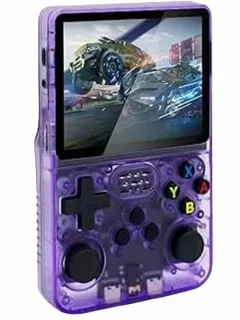
The R36s Retro Game Handheld has become a favorite among gaming enthusiasts who love nostalgia and portability. If you’re a beginner, getting started with this device might seem tricky, but this guide will walk you through the setup process step by step.
Unboxing Your R36s Retro Game Handheld
When you first receive your R36s Retro Game Handheld, check the package contents. Typically, it includes:
- The handheld console
- USB charging cable
- User manual
- Preloaded games
Ensure all accessories are present before powering on your device. This initial step is crucial for a smooth setup experience.
Charging Your Device
Before using the R36s, fully charge it using the supplied USB cable. A full charge ensures optimal battery life and prevents interruptions while installing or playing games. Beginners often overlook this step, but it’s essential for avoiding early frustration.
Powering On and Basic Navigation
- Press and hold the power button until the screen lights up.
- Use the directional pad to navigate the menu.
- Familiarize yourself with buttons like A, B, Start, and Select, which are standard across retro games.
The R36s interface is intuitive, but taking a few minutes to explore menus will make gameplay much smoother.
Installing Additional Games
If you want more games beyond the preloaded ones:
- Connect your R36s to a PC via USB.
- Open the device’s storage folder.
- Copy ROM files into the appropriate folder (make sure the games are compatible).
- Safely eject the device and restart.
Remember, always use legal and safe ROMs to avoid any security issues.
Customizing Settings
The R36s Retro Game Handheld allows beginners to adjust screen brightness, sound levels, and control mapping. Experiment with settings to find what feels most comfortable for you. Customization enhances the gaming experience, especially during extended play sessions.
Troubleshooting Common Issues
Even beginners might face minor issues such as:
- Device not charging → Check the cable or try a different USB port.
- Games not loading → Ensure ROMs are compatible and correctly placed.
- Screen freezes → Restart the handheld.
Following these tips will ensure a hassle-free experience with your R36s Retro Game Handheld.
Conclusion
Getting started with the R36s Retro Game Handheld doesn’t have to be complicated. By following this beginner-friendly setup guide, you’ll be ready to enjoy retro gaming anywhere. From unboxing to customization, these steps ensure a smooth start for anyone new to this portable gaming device.
